
Some jobs make sense as one set of windows from start to finish. Others are easier to work through when parts of the project have their own cut plans.
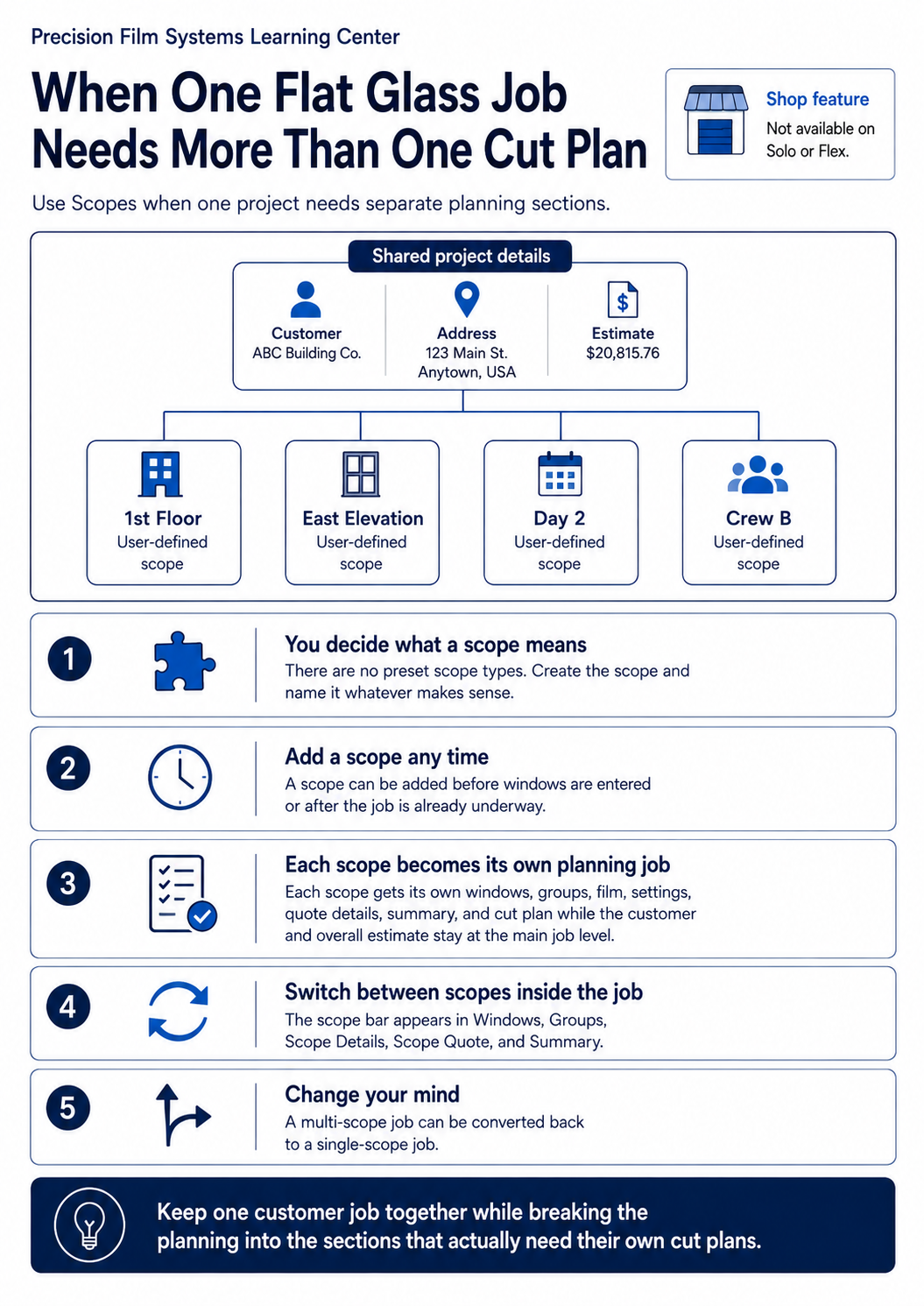
A larger project might need to be separated by floor, elevation, film type, installer, crew, install day, or something specific to that job. Precision Film Systems does not ask you to choose a scope type. You create the scope, name it whatever makes sense, and decide how the project should be divided.
Scopes are a Shop feature and are not available on Solo or Flex.
The shop decides what a scope means
There is no preset list of scope categories in Precision Film Systems.
A scope called 1st Floor might make sense on one project. Another could use East Elevation, Day 2, Crew B, or the name of a film being installed in that section.
The name only needs to make sense to the people working with the job.
That leaves Scopes open enough to handle the way different shops actually divide larger projects instead of forcing every job into the same structure.
Turning a job into multiple scopes only takes a button
A job can start normally and stay that way unless there is a reason to divide it.
When another scope is needed, the user can add one and the job becomes a multi-scope project. That can be done before any windows are entered or after the job is already underway.
So if a job looked straightforward during setup and later turns out to need separate plans, it does not have to be rebuilt from scratch just to use Scopes.
The structure is reversible too. A multi-scope job can be converted back to a single-scope job if the separation is no longer useful.
Each scope becomes its own planning job
Once multiple scopes are created, each scope gets its own working plan.
The windows, groups, scope details, film selection, quote details, settings, and cut plan can be handled separately for that scope. The customer, job-site information, and other details that belong to the project as a whole stay above them as the common job.
One scope might use a 72-inch roll while another uses 60-inch material. One might contain the first day of installation while another is assigned to the next crew. The scopes do not have to share the same reason for being separated.
The Project Detail Sheet shows how that carries through to output. In the example, the first-floor scope has its own windows, groups, notes, film, and planned rolls, while the second floor has its own production details under the same project.
Switching between scopes stays inside the job
Once a job has multiple scopes, a scope selection bar appears in the parts of Precision Film Systems where scope-specific information is being worked on.
It is available in the Windows, Groups, Scope Details, Scope Quote, and Summary cards.
That means the user can open the Windows card, switch from one scope to another, and work on the measurements for each section without leaving the job. The same applies when changing groups, scope details, or quote information.
The scope structure stays with the project instead of turning each section into a completely separate customer job.
Summary gives a quick look at each scope
Summary is the quick-estimate view of the job.
On a multi-scope project, the same scope selection bar makes it easy to move between the individual scope summaries and the combined job view.
That can be useful while working through a larger estimate because each scope can be checked on its own without losing the overall project total.
The Project Detail Sheet follows a similar structure in the finished output. The project overview combines information from both scopes, while later pages break the production details back out by scope.
Groups still have a place inside Scopes
Scopes and Groups do different jobs.
A scope can divide the larger project into sections that need their own cut plans. Groups can then organize windows further inside each of those scopes.
A scope named 1st Floor might contain groups for an entrance, conference area, and offices. Another scope could be organized completely differently.
That gives larger jobs two levels of organization without requiring either one on a straightforward project.
Where Scopes fit
Scopes are useful when one job site needs more than one independent planning section but still belongs under the same customer and project.
The shop decides what those sections represent and what to call them. They can be created before measuring begins or added later when the need becomes obvious, and they can be removed by returning the job to a single scope.
For a simple job, none of that has to get in the way.
For a project that needs to be divided, the extra structure is there when it becomes useful.
Frequently asked questions
Are there predefined scope types?
No. Scopes are completely user-defined. You create the scope and name it based on whatever division makes sense for the project.
Do I have to create Scopes before entering windows?
No. Scopes can be added before windows are entered or after work on the job has already started.
Can a multi-scope job be changed back to a single scope?
Yes. A multi-scope project can be converted back to a single-scope job.
Does each scope get its own cut plan?
Yes. Each scope is planned independently and gets its own cut plan and scope-specific settings.
Can different scopes use different films?
Yes. Film selection can be handled separately for each scope.
Where can I switch between scopes?
The scope selection bar appears in the Windows, Groups, Scope Details, Scope Quote, and Summary cards on multi-scope jobs.
Can I see an estimate for each scope?
Yes. Summary lets you switch between individual scope summaries and the combined job view.
Which plans include Scopes?
Scopes are included with Shop. They are not available on Solo or Flex.